
Want Windows 10 to run faster? We've got help. In just a few minutes you can try out this baker’s dozen of tips; your machine will be zippier and less prone to performance and system issues.
1) Make Task Manager your best friend
Think of Task Manager as a window into your PC's health. The app gives you insight into what's taxing the processor, how much memory something is taking up and even how much network data a program has used.
An easy way to open Task Manager is to right-click on the Taskbar and select Task Manager from the list of options.
Task Manager's default view doesn't show a lot of information beyond which apx ps are currently running (handy if you already know if you want to close one out), so after opening the app, click on More Details in the bottom left corner. By default, the list is broken down into Apps and Background Processes. It's refreshed constantly, with the various columns constantly updating. My advice is to let Task Manager run for a few minutes and just watch it. Watch for apps that shoot up to the top of the list, then disappear a few seconds later. Look for processes that stay at the top of the list with high memory or CPU use. You can Google names to find out more about a process. To close an app or process that you feel may be partly responsible for slow performance, click on it and then End Task.
2) Too many startup apps
If your PC is taking forever to boot up, then you probably have far too many apps trying to run at startup. You can edit the list of apps and services that begin running when you log in to your computer by opening Task Manager and clicking on the Startup tab.
Go through the list and remove anything that you don't need to have loaded and ready the moment your PC turns on by clicking the app name followed by Disable.
3. Update Windows, drivers, and apps
You’ve probably heard that keeping your software up to date is a good idea for security. This is true and it can help performance too. Windows will automatically send you a notification when an update is available. You just need to make sure you don’t keep putting it off.
If you think you might have missed an update, you can always check. Go to Start and click Settings or the settings icon. Then go to Updates & Security > Windows Updates.
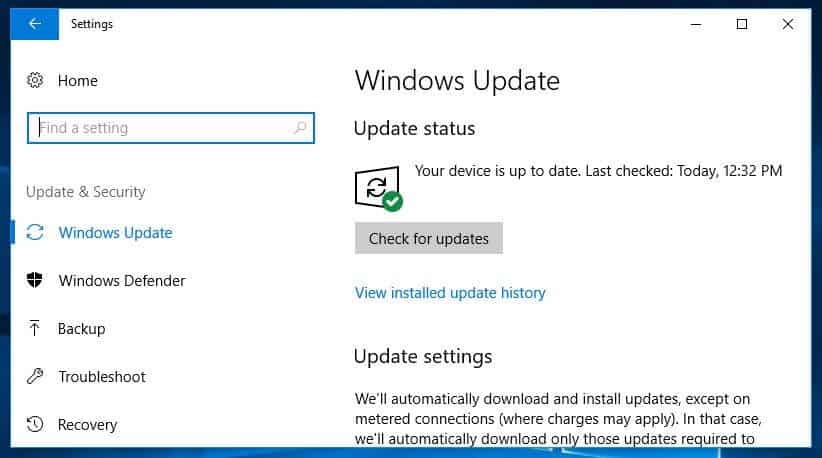
Aside from your Windows operating system, drivers and apps should be kept up to date too. Again, this is good for both security and performance. If you think you might have missed an update, a quick online search should tell you which version you should be using.
4. Delete unnecessary files
Just like our closets and drawers, our computers get cluttered. While you can’t really see it, you know it’s there, and it could be having a negative impact on your computer’s performance. This is especially true if you deal with a lot of large files, such as high-resolution images, audio files, and videos, on a day-to-day basis.
Free up space by making a habit of deleting files and folders each week and emptying the recycle bin afterwards. Doing this regularly means it’s more likely you’ll remember exactly what’s in the files and folders and won’t be so concerned about mistakenly deleting something important.
Handy tip: HDDs usually run at peak speed until they reach roughly 90 percent capacity. So if you check how much space is used up and you’re over 90 percent, that’s probably what’s slowing things down. SSDs slow down more gradually as they fill up, so it’s good to stay on top of things. It’s recommended not to fill an SSD to more than 75 percent of its capacity.
5. Find programs that eat up resources
If you find that your computer is suddenly running significantly slower, chances are there is a particular program to blame. One way to identify the culprit is to go into your task manager and find out what’s eating up your resources.
Right-click the taskbar and select Task Manager. Click More details to find out information about the programs that are currently running on your computer. It should show you the Processes tab by default.
The Processes tab within the Task Manager screen.
You can click each header to sort the list according to which applications are using the most of that particular resource. If you need to close something, try closing the actual application first. If it won’t close, come back to the Task Manager screen, right-click the application, and hit End task.
Windows 7 : Instead of accessing Task Manager, you’ll need to search for System Configuration.


0 Comments